Calendar, contacts and tasks
Calendar, contacts and tasks sync through the CalDAV/CardDAV standard. You never have to type or copy a password for this. You sign in once in the browser, and the phone receives its own access key automatically.
Add the account
/e/OS already includes the sync app (the "Account Manager", based on DAVx⁵). You do not need to install anything.
-
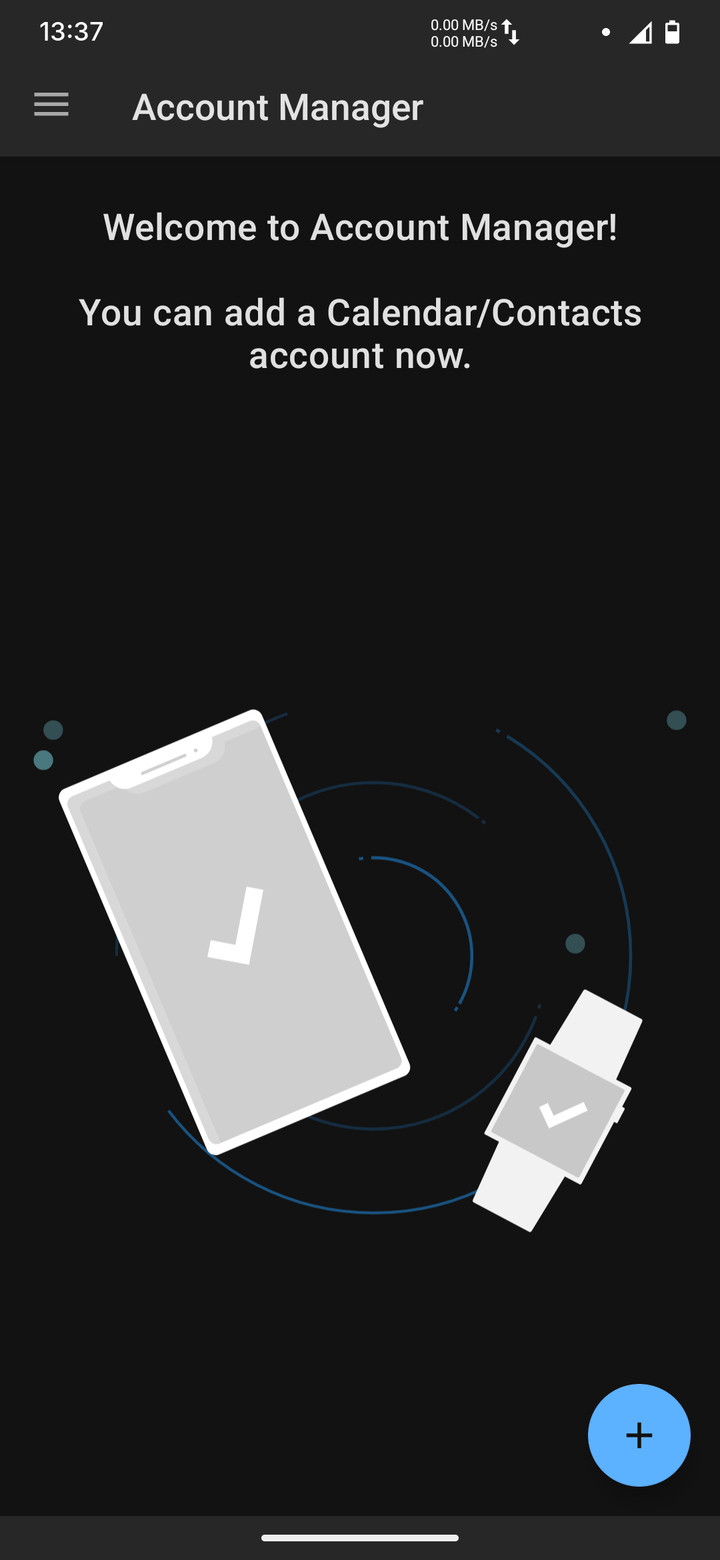
Open the Account Manager app and tap +.
-
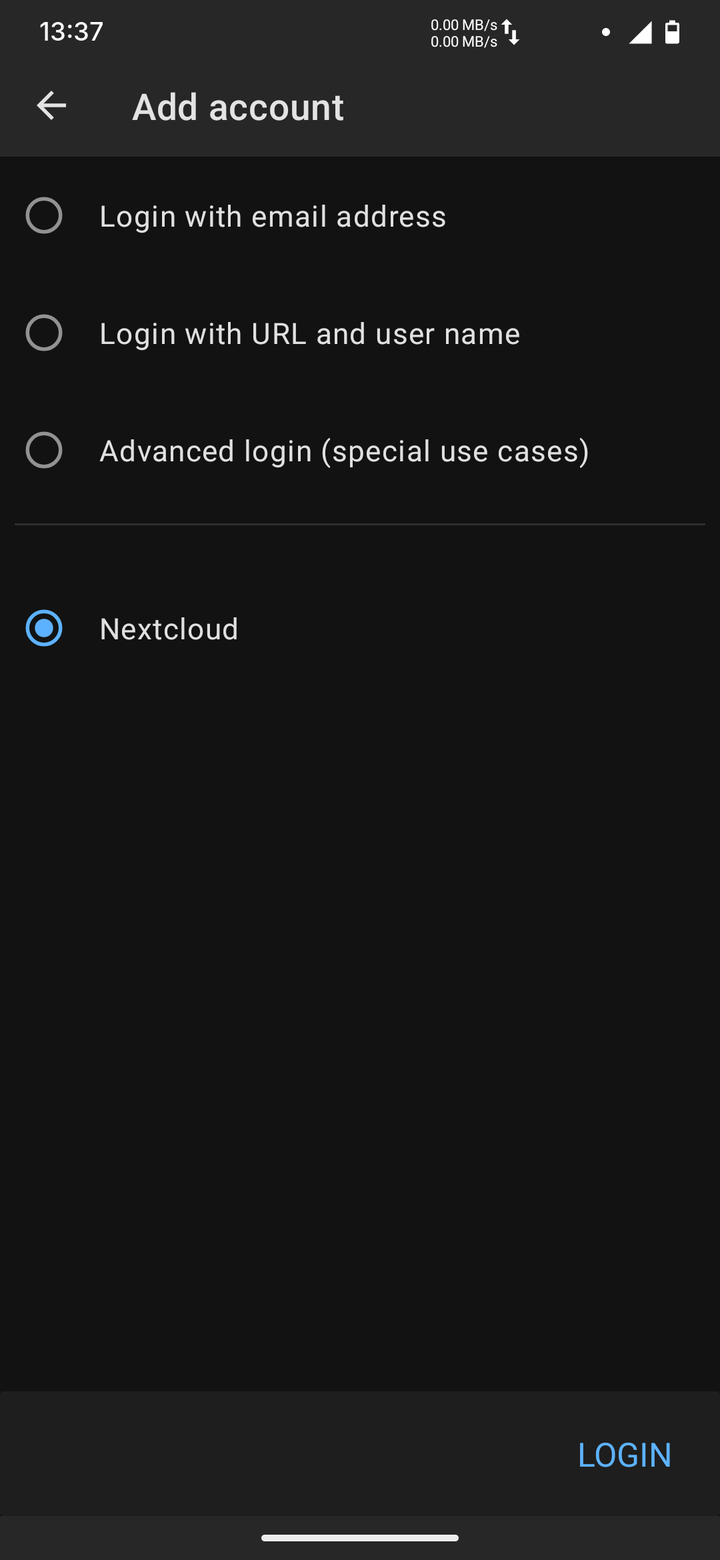
Choose Nextcloud and tap LOGIN.
-
Enter the server address
https://<cloud-address>and continue. -
A browser window opens: Connect to your account. Tap Log in and sign in the way you usually do, for example with the button to sign in using your mail account.
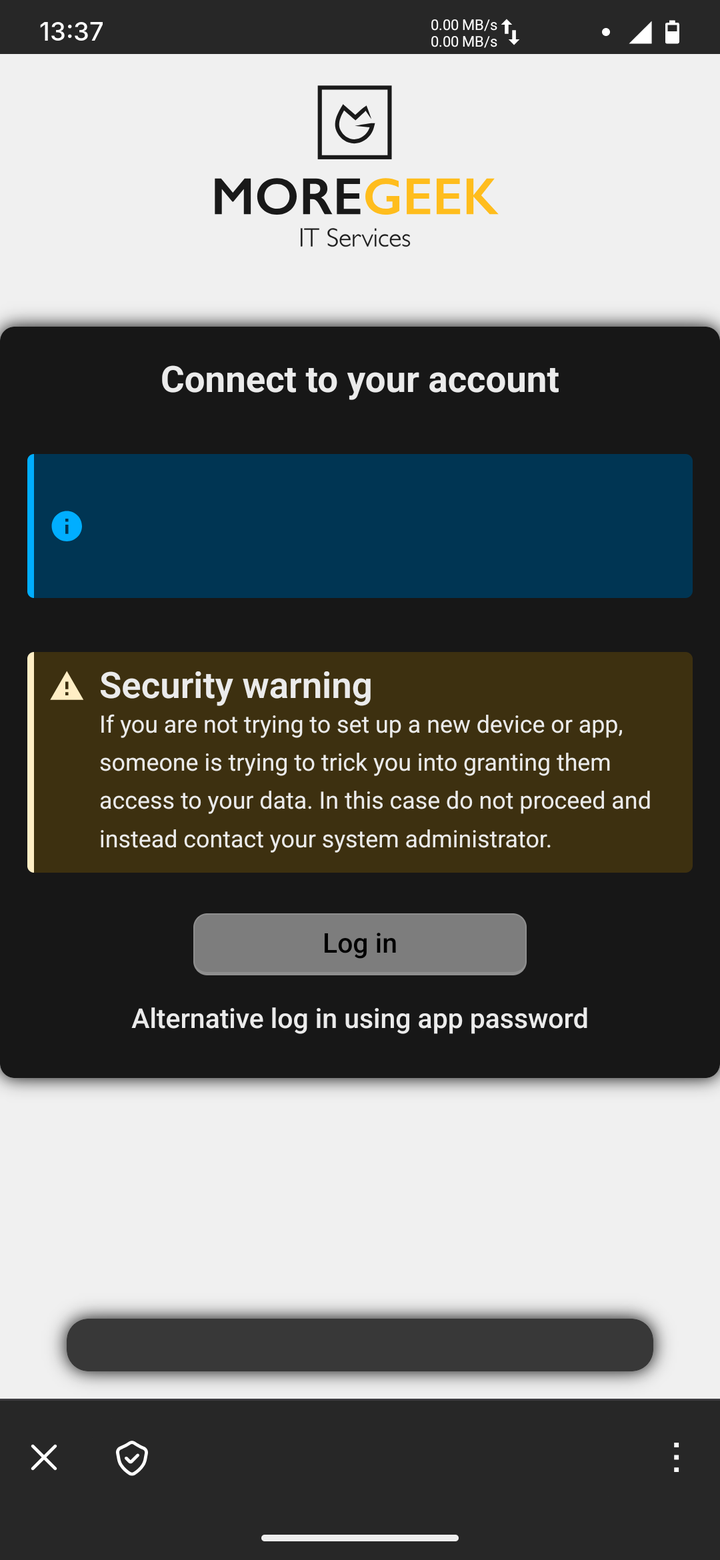 Please log in before granting "/e/OS v2 (Android) Nextcloud-android" access to your Nextcloud account.Nextcloud – a safe home for all your data
Security warning
Only continue if you are setting up your own phone right now. If you get this page without having started a setup, close it and contact us.
-
Nextcloud asks for Account access. Tap Grant access.
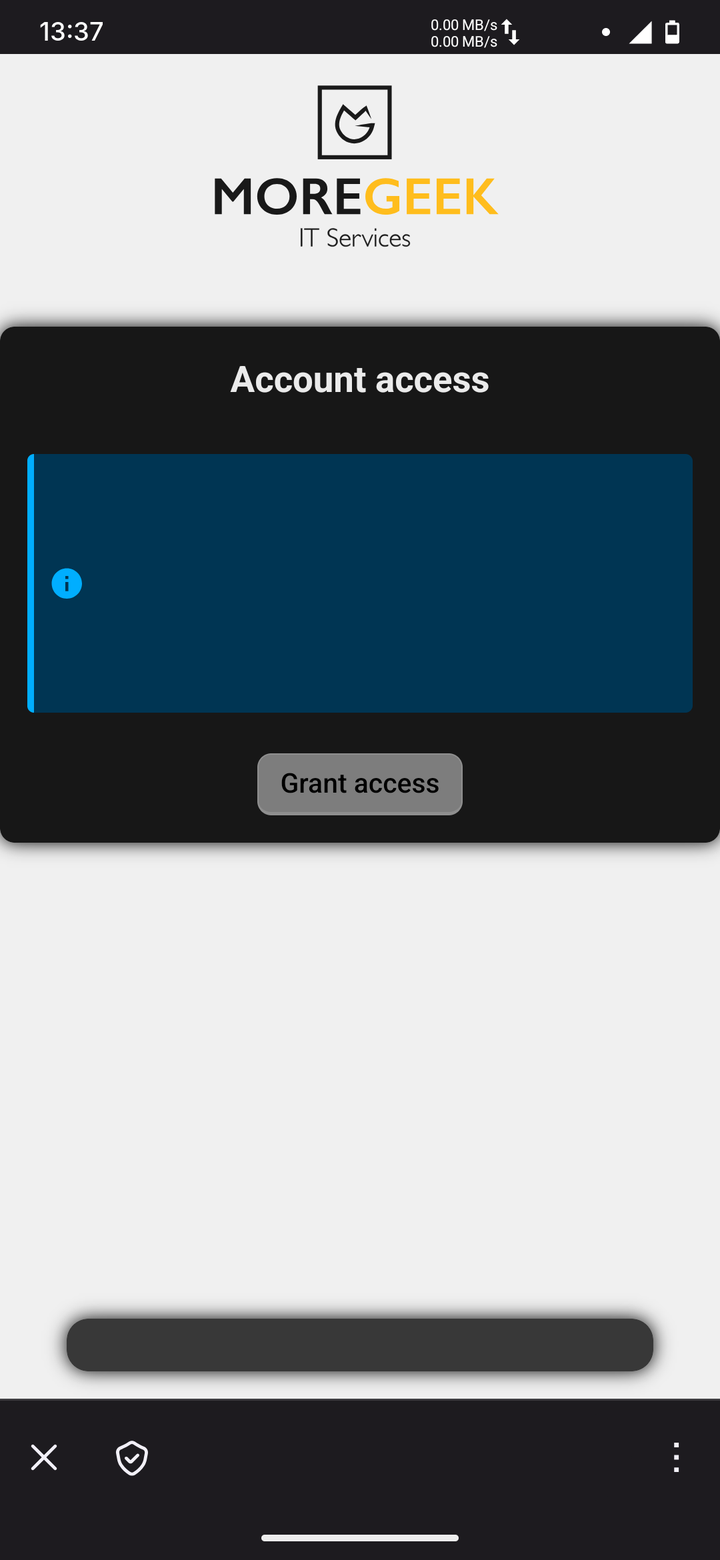 Currently logged in as Jane Doe (<email>).
You are about to grant "/e/OS v2 (Android) Nextcloud-android" access to your Nextcloud account.Nextcloud – a safe home for all your data -
Account connected appears. Close the browser window with ✕ at the bottom left.
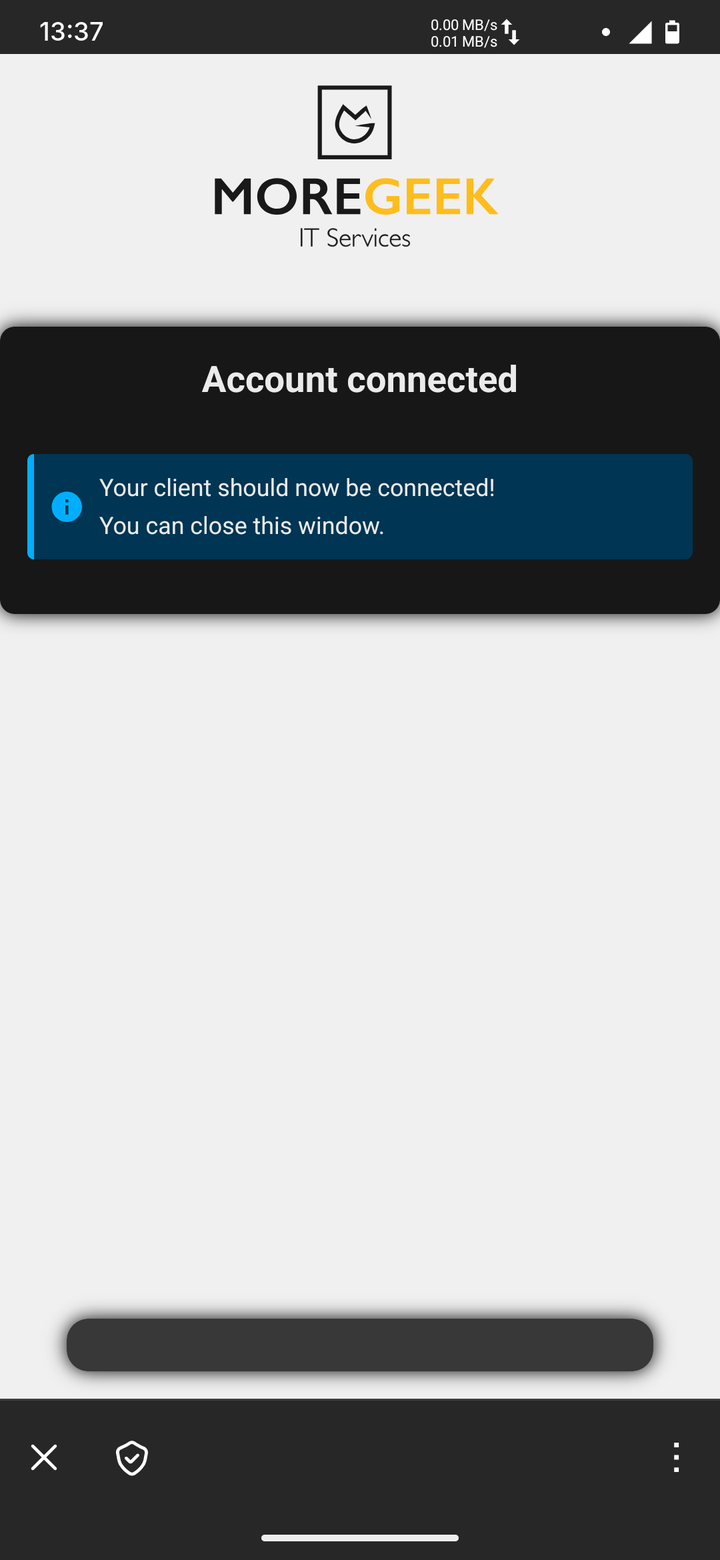 Nextcloud – a safe home for all your data
 -
Back in the Account Manager, rename the account: the suggested Account name is a long technical ID. Replace it with your email address
<email>. This is the name Android shows in the Calendar and Contacts apps and in the account list, and it is used as the organizer of the events you create. Leave Contact group method as it is and tap ADD ACCOUNT.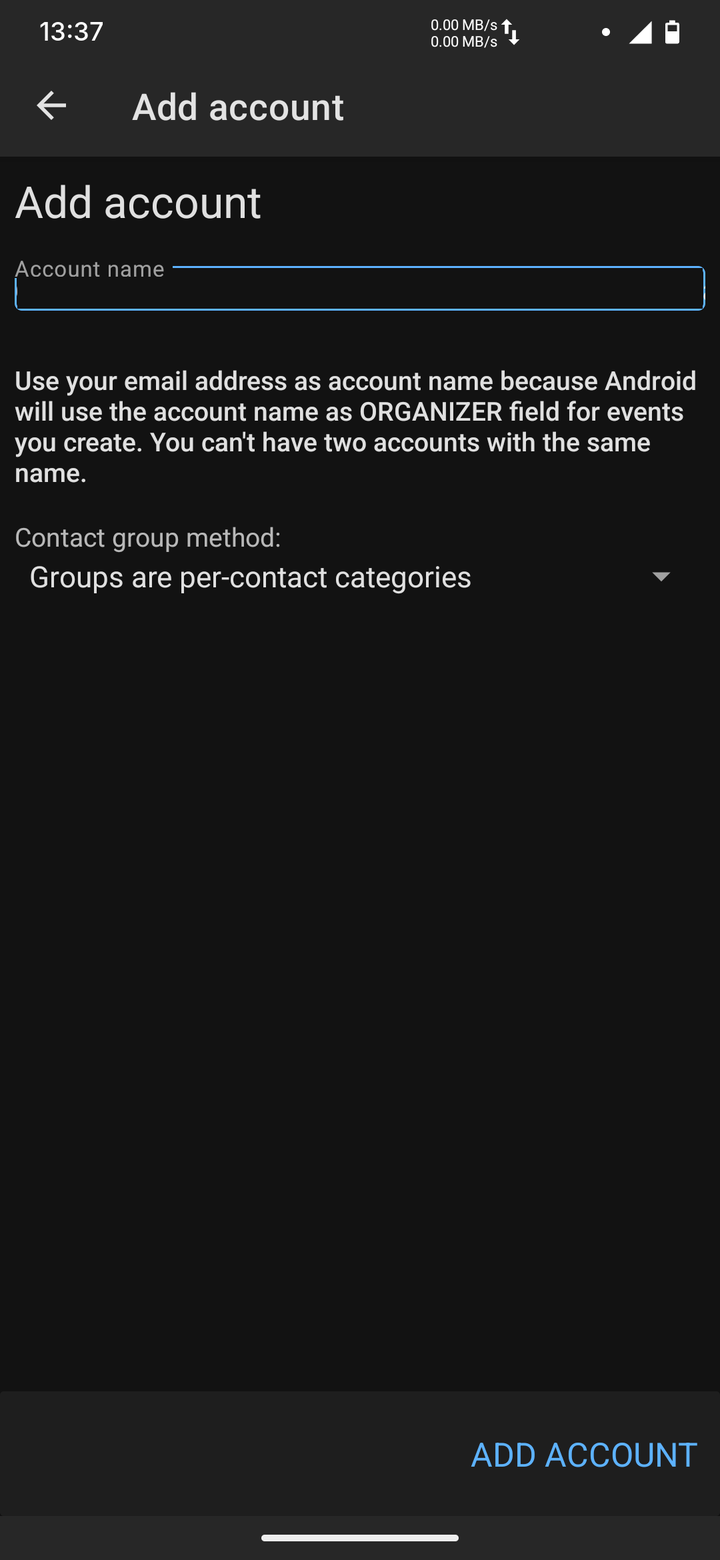 0a1b2c3d-4e5f-5a6b-7c8d-9e0f1a2b3c4d-<email>
 -
Sync starts automatically. The first sync can take a minute.
Standard Android does not include a CalDAV/CardDAV sync app, so you install DAVx⁵:
- Install DAVx⁵ from F-Droid (free) or the Google Play Store.
- Open DAVx⁵ and tap + (add account).
- Choose Login with URL and Nextcloud login (wording may vary: "Nextcloud Login Flow").
- Enter
https://<cloud-address>and continue. - Sign in in the browser the way you usually do.
- Nextcloud asks: "Account access – You are about to grant … access to your Nextcloud account." Tap Grant access.
- Back in DAVx⁵, rename the account: if the suggested Account name is a long technical ID, replace it with your email address
<email>. This is the name Android shows in the Calendar and Contacts apps, and it is used as the organizer of the events you create. Then tap Create account.
Tasks
To see your Nextcloud tasks, also install a tasks app such as jtx Board or Tasks.org (both on F-Droid). DAVx⁵ connects to them automatically.
Choose what to sync
- Open Settings → Accounts → (your Nextcloud account).
- Under the CardDAV (contacts) and CalDAV (calendars & tasks) tabs, tick the address books and calendars you want on the phone.
- Optional: set the sync interval (default: every 15 minutes).
- Open DAVx⁵ and tap your account.
- Under the CardDAV (contacts) and CalDAV (calendars & tasks) tabs, tick the address books and calendars you want on the phone.
- Optional: set the sync interval in the account settings.
Show the data in the apps
Calendar app
- Open Calendar → menu (☰) → Settings.
- Make sure your Nextcloud calendars are switched on (visible).
- Under Default calendar, choose your Nextcloud calendar so that new events are stored in Nextcloud and not only on the phone.
Contacts app
- Open Contacts → menu → Settings.
- Under Default account for new contacts, choose your Nextcloud account.
- If contacts are missing, check Contacts to display → All contacts.
Save to the Nextcloud account
Contacts and appointments saved to "Phone" or "Device" are not synchronised and are lost if the phone breaks. Always save to the Nextcloud account.