Nextcloud app (files)
With the Nextcloud app you can access your files, share them and automatically upload photos.
Install the app
Install Nextcloud from the App Lounge (/e/OS), F-Droid or the Google Play Store. Make sure it is the official app by Nextcloud.
Sign in
There are two ways to sign in. Both give the app its own access key, you never type your password into the app.
- Log in via browser: everything happens on the phone.
- Scan QR code: you create the access on a computer and scan it with the phone. Handy if signing in on the phone's small screen is awkward.
-
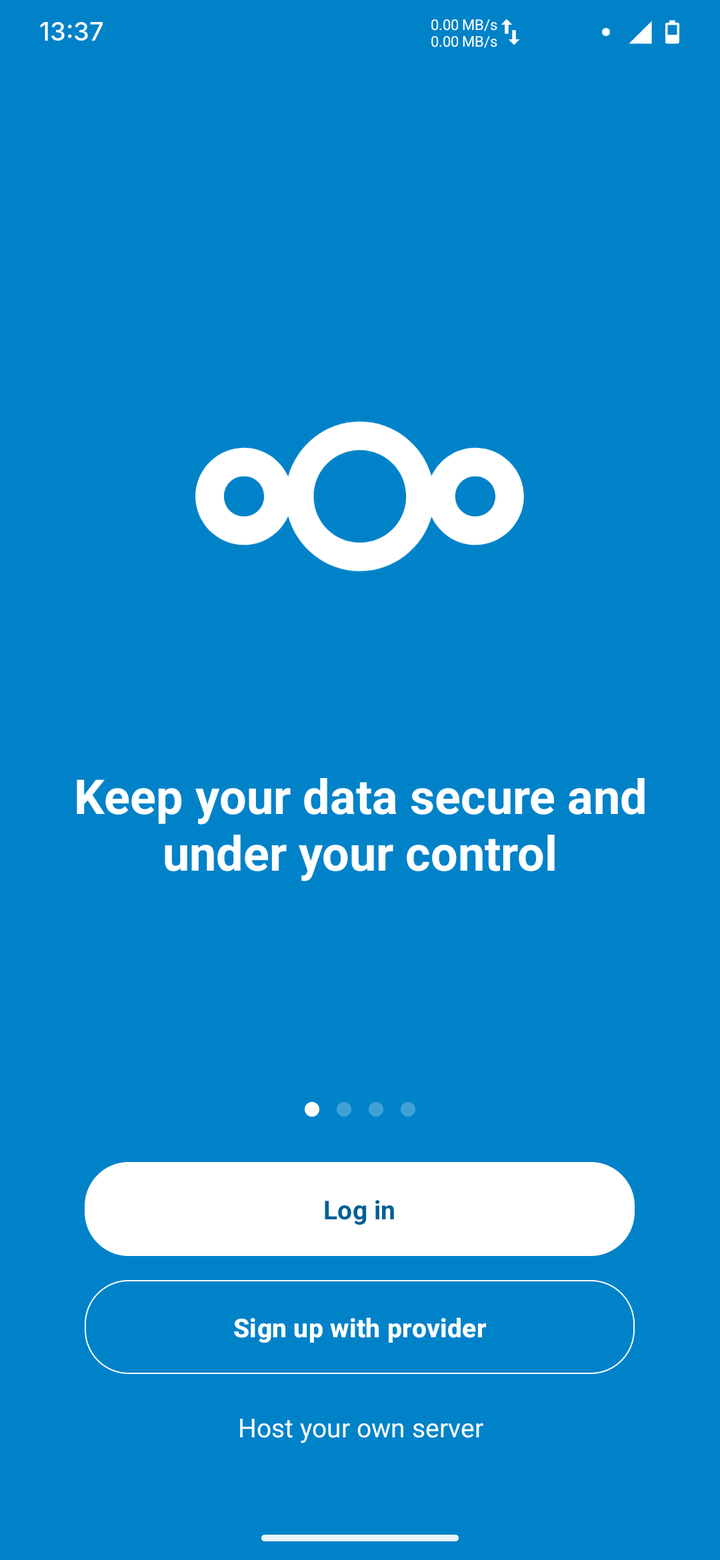
Open the app and tap Log in.
-
Enter the server address
https://<cloud-address>and tap the → arrow.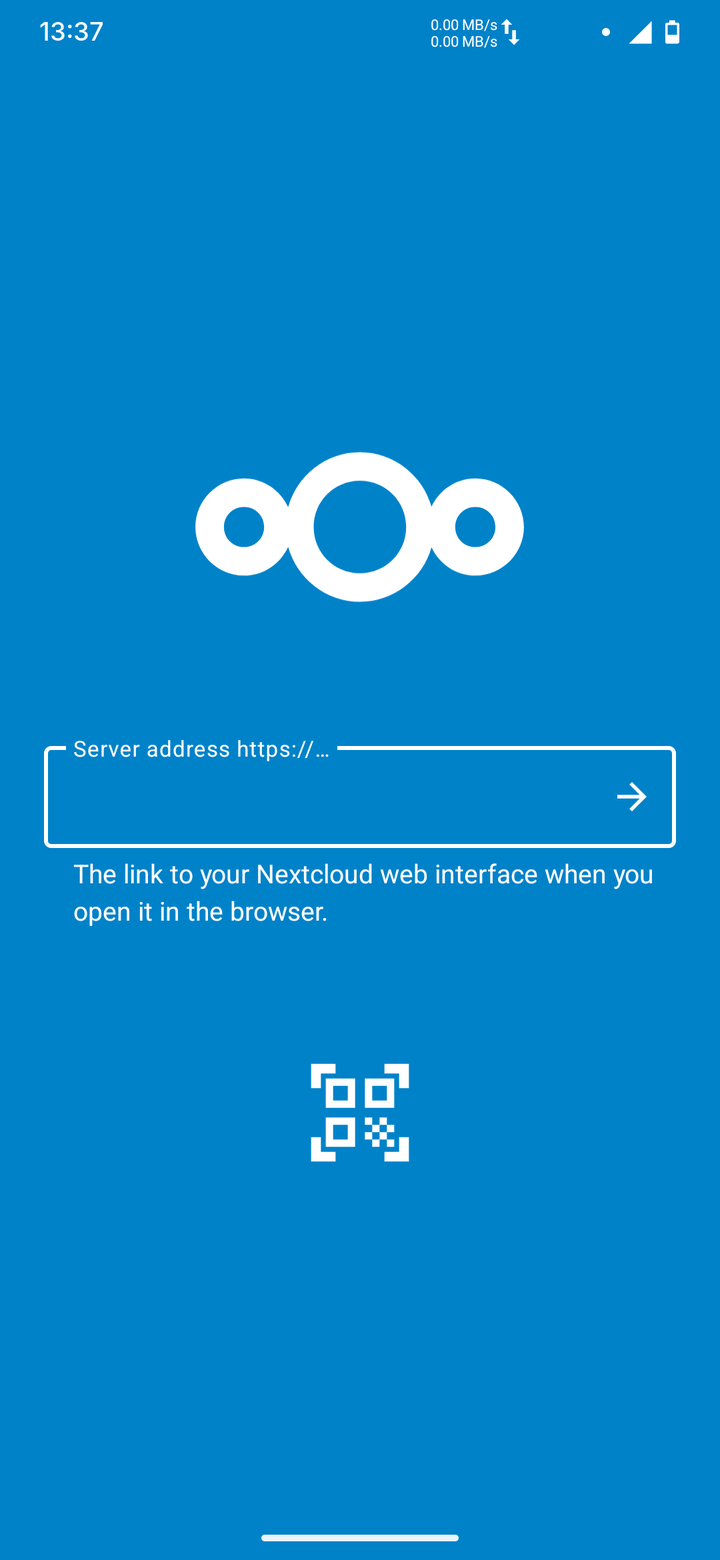 https://<cloud-address>
 -
A browser window opens: Connect to your account. Tap Log in and sign in the way you usually do, for example with the button to sign in using your mail account.
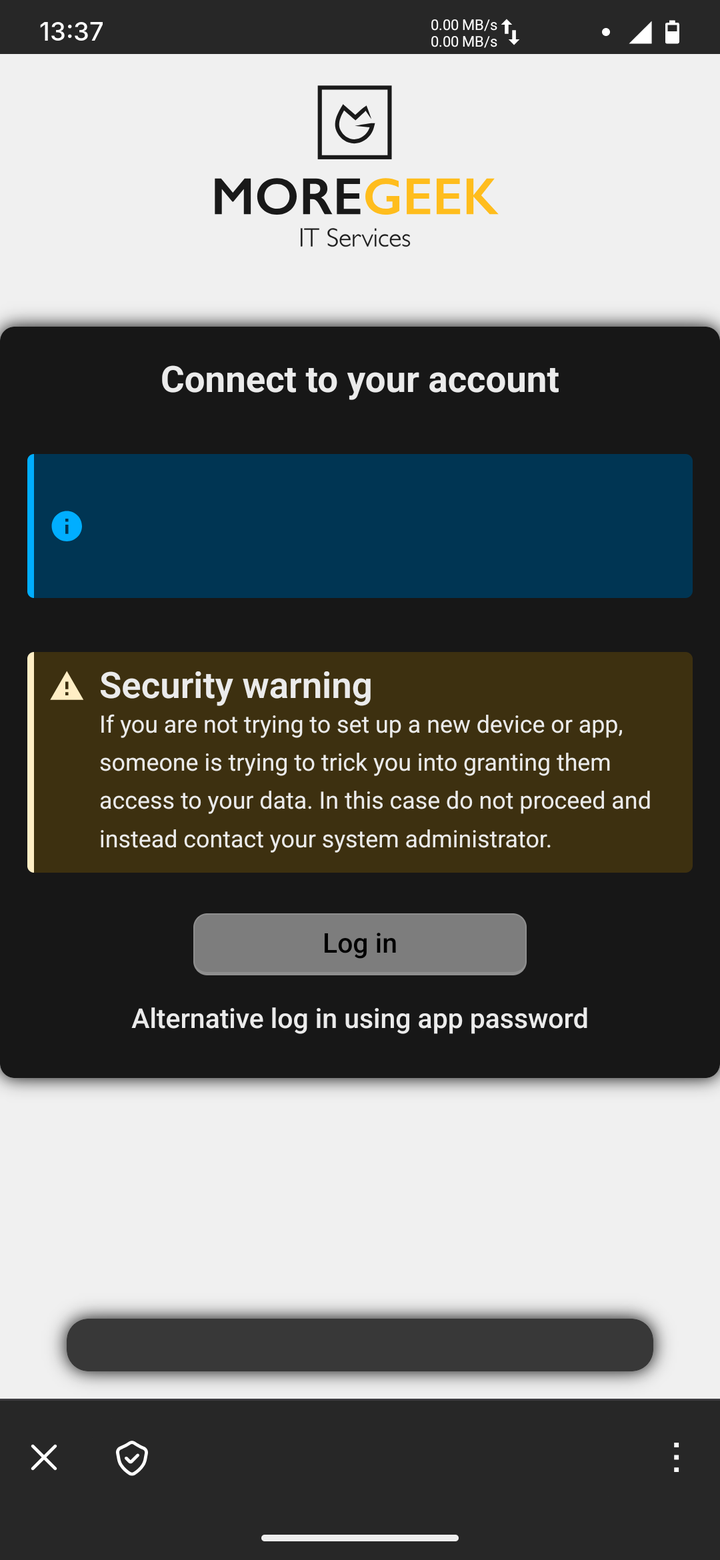 Please log in before granting "Mozilla/5.0 (Android) Nextcloud-android" access to your Nextcloud account.Nextcloud – a safe home for all your data
Security warning
Only continue if you are setting up your own phone right now. If you get this page without having started a setup, close it and contact us.
-
Nextcloud asks for Account access. Tap Grant access.
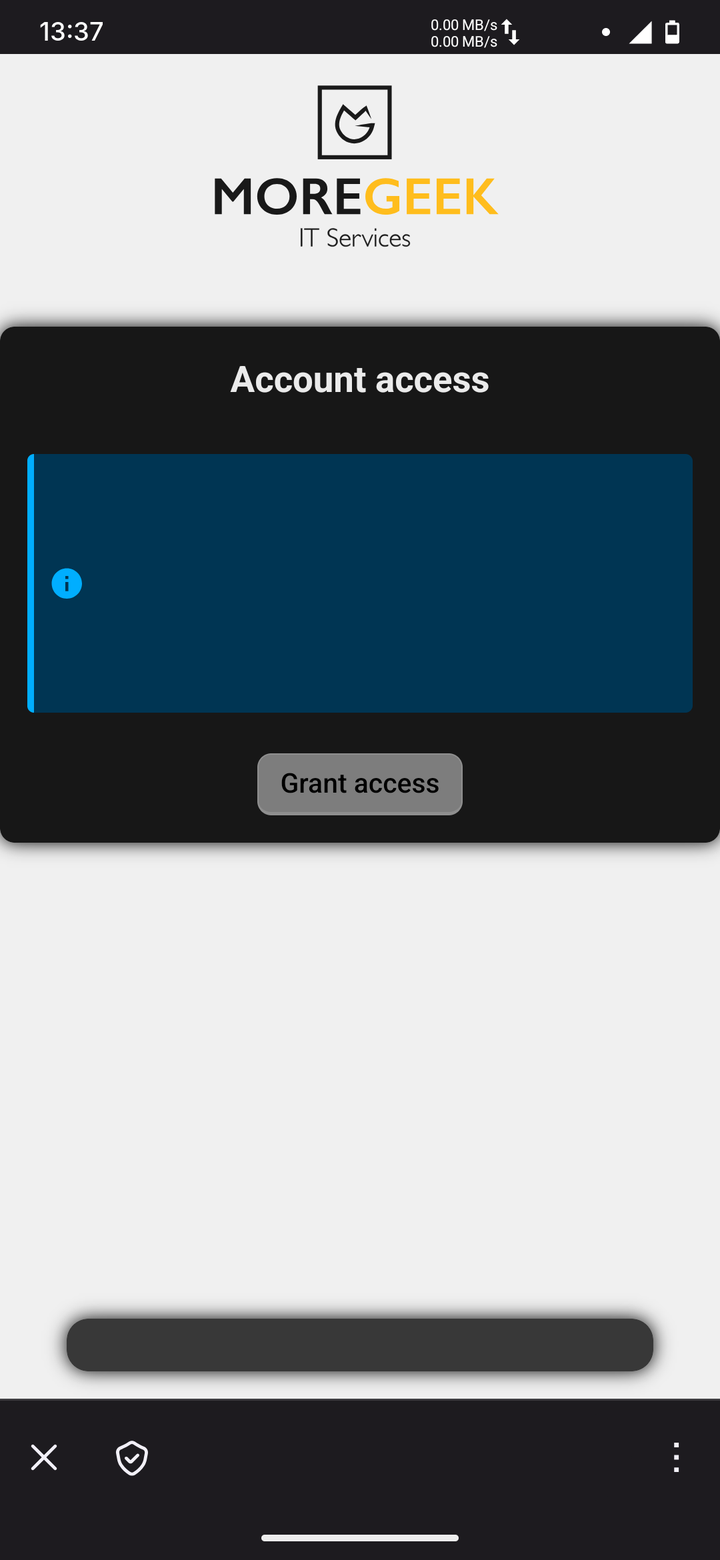 Currently logged in as Jane Doe (<email>).
You are about to grant "Mozilla/5.0 (Android) Nextcloud-android" access to your Nextcloud account.Nextcloud – a safe home for all your data -
Account connected appears. If the browser doesn't close by itself, close it with ✕ at the bottom left.
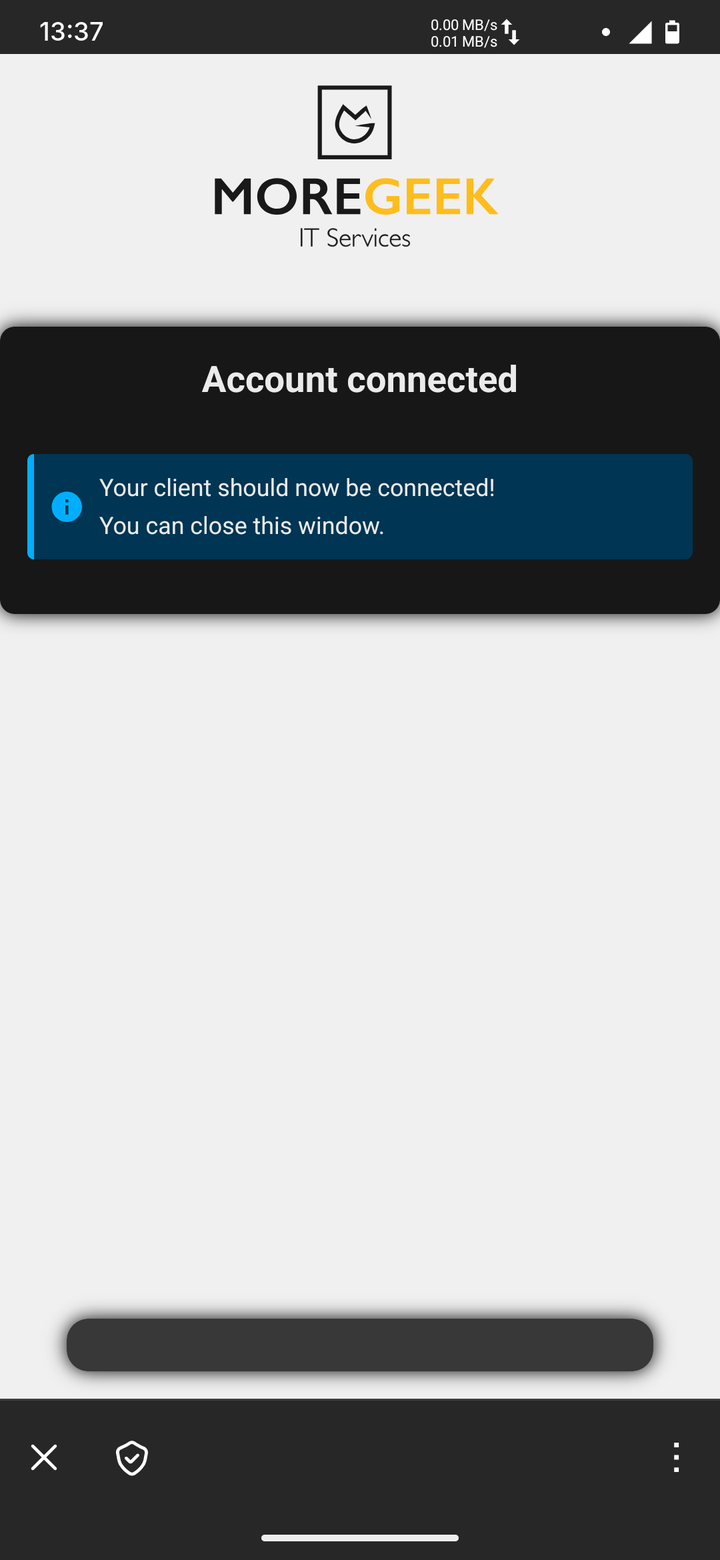 Nextcloud – a safe home for all your data
 -
Done. Your files appear in the app.
On the computer:
- Open
https://<cloud-address>in the browser and sign in as usual. - Click your profile picture → Settings → Security.
- Under Devices & sessions, enter a name you will recognise later, e.g.
Fairphone – Files, and click Create new app password. - Click Show QR code for mobile apps. Keep the QR code on the screen.
On the phone:
-
Open the app and tap Log in.
-
Tap the QR code symbol below the server address field and allow camera access if asked. Point the camera at the QR code on the computer screen.
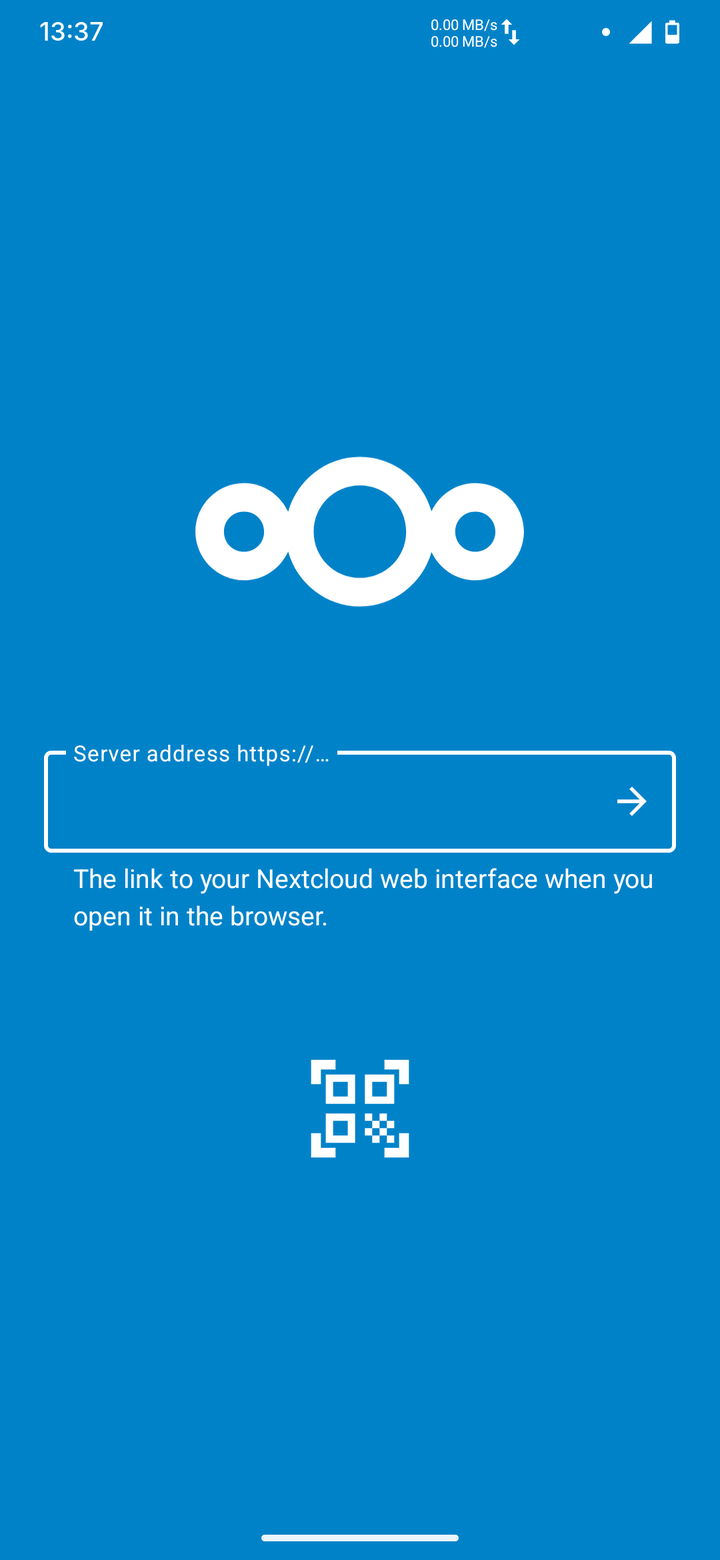
-
The app asks Confirm login. Check that the server is
<cloud-address>and tap Yes.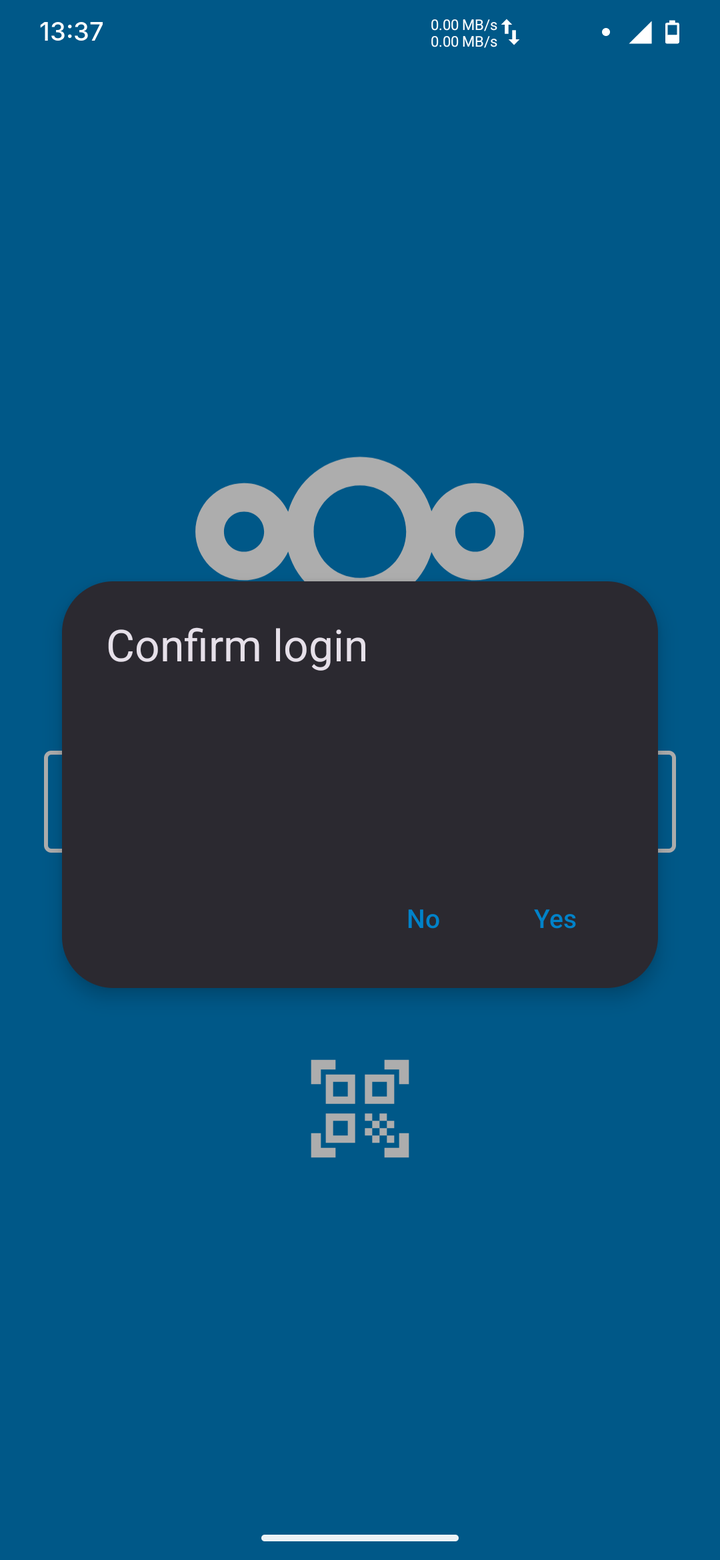 Do you want to log in with 0a1b2c3d-4e5f-5a6b-7c8d-9e0f1a2b3c4d-<email> to <cloud-address>?
 -
Done. Your files appear in the app. You can close the QR code on the computer.
Note
The long name in the dialog is your technical login name. That's expected.
Optional: automatic photo upload
- In the Nextcloud app, open the menu (☰) → Auto upload.
- Enable the folders you want, e.g. Camera.
- In the folder's settings, decide whether uploads should only happen on Wi-Fi and only while charging.
Standard Android: set up calendar & contacts from here
If you use standard Android with DAVx⁵ and the Nextcloud app is already installed, you can also start the calendar & contacts setup from the Nextcloud app under Settings → Sync calendars & contacts. It opens DAVx⁵ with your server already filled in.